 83b3f01928
-Updated bison flex exe files to the latest windows version i could find
-Regenned the compiler..... alot of changes.....
6.5 KiB
How to setup custom build rules for Visual Studio 2010 and up.
First of all you should have the necessary files.
Custom Build rules are separated into a file triplet of .xml, .targets and .props.
You find the custom build rules for win_flex_bison in the custom_build_rules directory of the win_flex_bison archive.
You may choose to install one of the following rule set
-
the combined rules - alternative download:
-
flex only rules - alternative download:
-
bison only rules - alternative download:
This documentation uses the combined rule-set but can be used for all rule-sets.
Launch Visual Studio and open an VC/VC++ project. Open context menu for project item in Solution Explorer panel and select "Build Customizations..." menu item. (Note: newer VS versions have this below sub-menu "Build Dependencies...".)

In popup dialog "Visual C++ Build Customization Files" press "Find Existing..." button.

In Open File dialog select "win_flex_bison_custom_build.targets" file and press "Open". (Note: you may have to switch the file filter to "(.) all files".)
You will see "Add Search Path?" message box, press "Yes".

In "Visual C++ Build Customization Files" dialog check just added item win_flex_bison_custom_build and press "OK".

Now you can add flex and bison files to the project...
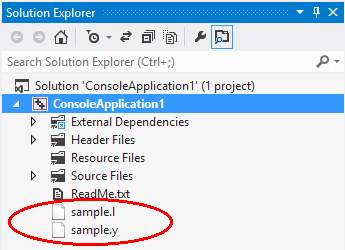
... and build. In build output you should see something like this:
1>------ Rebuild All started: Project: ConsoleApplication1, Configuration: Debug Win32 ------
1>  Process sample bison file
1>  Process sample flex file
1>  stdafx.cpp
1>  ConsoleApplication1.cpp
1>  Generating Code...
1>  ConsoleApplication1.vcxproj -> C:\Users\ConsoleApplication1\Debug\ConsoleApplication1.exe
========== Rebuild All: 1 succeeded, 0 failed, 0 skipped ==========
For sample.y bison file there are two output files: sample.tab.h and sample.tab.cpp. For sample.l flex file you'll got sample.flex.cpp.
Now you can add them to the project and build. (Don't forget to exclude cpp files from using precompiled headers)

1>------ Build started: Project: ConsoleApplication1, Configuration: Debug Win32 ------
1>  Process sample bison file
1>  Process sample flex file
1>  sample.tab.cpp
1>  sample.flex.cpp
1>  Generating Code...
1>  ConsoleApplication1.vcxproj -> C:\Users\ConsoleApplication1\Debug\ConsoleApplication1.exe
========== Build: 1 succeeded, 0 failed, 0 up-to-date, 0 skipped ==========
If your flex/bison file is incorrect and you've got an error. But you don't see actual error message, something like this:
1>------ Build started: Project: ConsoleApplication2, Configuration: Debug Win32 ------
1>  Process "grammar.y" bison file
1>C:...\custom_build_rules\win_flex_bison_custom_build.targets(55,5): error MSB3721: The command "
1>C:...\custom_build_rules\win_flex_bison_custom_build.targets(55,5): error MSB3721: start /B /WAIT /D "C:...\ConsoleApplication2\ConsoleApplication2\" win_bison.exe --output="grammar.tab.cpp" --defines="grammar.tab.h" --graph="1.dot" "grammar.y"
1>C:...\custom_build_rules\win_flex_bison_custom_build.targets(55,5): error MSB3721: exit /b %errorlevel%" exited with code 1.
========== Build: 0 succeeded, 1 failed, 0 up-to-date, 0 skipped ==========
You can change Build Output Verbosity from "Minimal" to "Normal" in "Options" dialog

Then you will see more detailed output:
1>BisonTarget:
1>  Process "grammar.y" bison file
1>  grammar.y:51.1-4: error: invalid directive: '%sdw'
1>C:...\custom_build_rules\win_flex_bison_custom_build.targets(55,5): error MSB3721: The command "
1>C:...\custom_build_rules\win_flex_bison_custom_build.targets(55,5): error MSB3721: start /B /WAIT /D "C:...\ConsoleApplication2\" win_bison.exe --output="grammar.tab.cpp" --defines="grammar.tab.h" --graph="1.dot" "grammar.y"
1>C:...\custom_build_rules\win_flex_bison_custom_build.targets(55,5): error MSB3721: exit /b %errorlevel%" exited with code 1.
1>
1>Build FAILED.
1>
1>Time Elapsed 00:00:01.21
========== Build: 0 succeeded, 1 failed, 0 up-to-date, 0 skipped ==========
Also you can tune some flex/bison options in files properties dialog:


To debug your scanner or parser you can set break points right into sample.y or sample.l code.

To use the Visual C++ Code editor for Flex/Bison files instead of the text editor adjust your editor settings as follows:
- click Options on the Tools menu, expand the Text Editor node and select File Extension
- type extension
lin the Extension field and choose Microsoft Visual C++ in the Editor drop-down field, click Add - do the same for the extension
y
You now have syntax highlighting, code-completion and show definition options in your Flex/Bison source.
Enjoy!